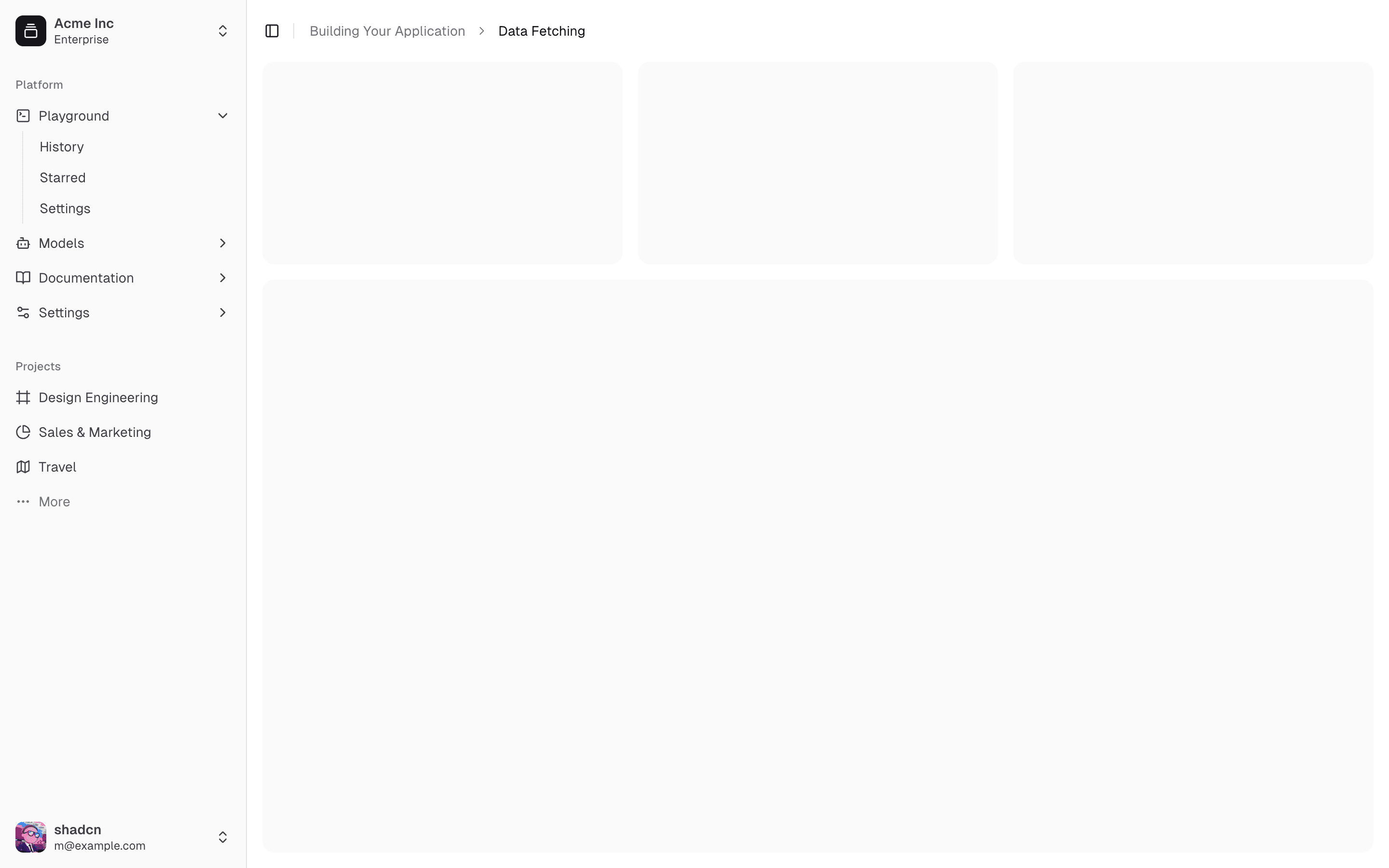
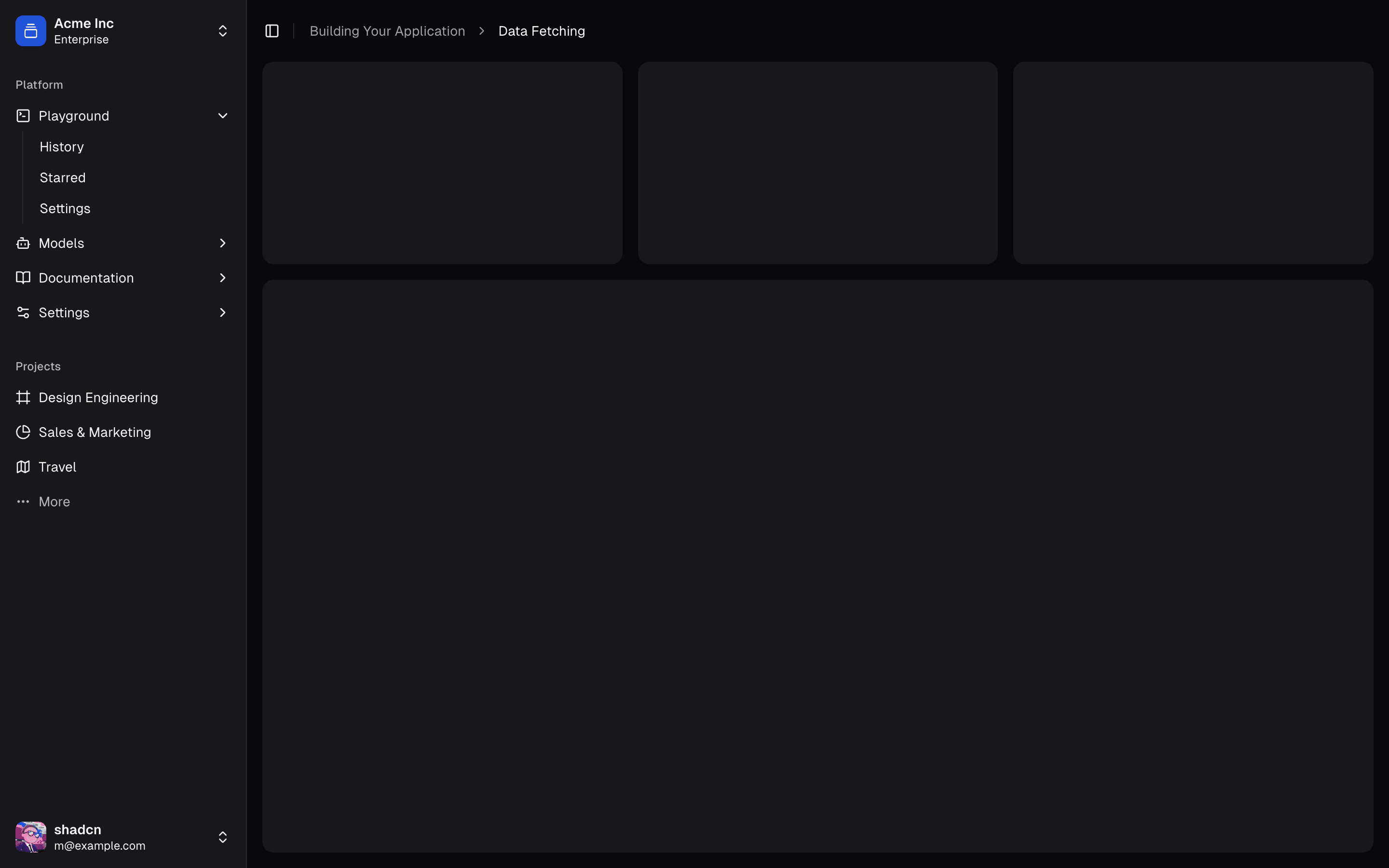
A sidebar that collapses to icons.
Sidebars are one of the most complex components to build. They are central to any application and often contain a lot of moving parts.
We now have a solid foundation to build on top of. Composable. Themeable. Customizable.
Installation
Usage
import { SidebarProvider, SidebarTrigger } from "@/components/ui/sidebar"
import { AppSidebar } from "@/components/app-sidebar"
export default function Layout({ children }: { children: React.ReactNode }) {
return (
<SidebarProvider>
<AppSidebar />
<main>
<SidebarTrigger />
{children}
</main>
</SidebarProvider>
)
}import {
Sidebar,
SidebarContent,
SidebarFooter,
SidebarGroup,
SidebarHeader,
} from "@/components/ui/sidebar"
export function AppSidebar() {
return (
<Sidebar>
<SidebarHeader />
<SidebarContent>
<SidebarGroup />
<SidebarGroup />
</SidebarContent>
<SidebarFooter />
</Sidebar>
)
}Composition
Use the following composition to build a Sidebar layout:
SidebarProvider
├── Sidebar
│ ├── SidebarHeader
│ ├── SidebarContent
│ │ ├── SidebarGroup
│ │ │ ├── SidebarGroupLabel
│ │ │ ├── SidebarGroupAction
│ │ │ ├── SidebarGroupContent
│ │ │ └── SidebarMenu
│ │ │ ├── SidebarMenuItem
│ │ │ │ ├── SidebarMenuButton
│ │ │ │ ├── SidebarMenuAction
│ │ │ │ └── SidebarMenuBadge
│ │ │ └── SidebarMenuItem
│ │ │ ├── SidebarMenuButton
│ │ │ └── SidebarMenuSub
│ │ │ ├── SidebarMenuSubItem
│ │ │ └── SidebarMenuSubItem
│ │ └── SidebarGroup
│ │ └── SidebarMenu
│ │ ├── SidebarMenuItem
│ │ └── SidebarMenuItem
│ ├── SidebarFooter
│ └── SidebarRail
├── SidebarInset
└── SidebarTriggerStructure
- SidebarProvider — Handles collapsible state and provides sidebar context to child components.
- Sidebar — The main collapsible sidebar panel.
- SidebarHeader — Sticky at the top; use for branding, titles, or workspace switchers.
- SidebarFooter — Sticky at the bottom; use for user menus, settings, or actions.
- SidebarContent — Scrollable region between the header and footer.
- SidebarGroup — Groups related navigation with optional label, action, and content areas.
- SidebarMenu / SidebarMenuItem — Menu structure for links, badges, actions, and nested submenus.
- SidebarRail — Resize handle for adjusting sidebar width when applicable.
- SidebarInset — Wraps main content when using the
insetvariant. - SidebarTrigger — Control that toggles the sidebar open or collapsed.


SidebarProvider
The SidebarProvider component is used to provide the sidebar context to the Sidebar component. You should always wrap your application in a SidebarProvider component.
Props
Width
If you have a single sidebar in your application, you can use the SIDEBAR_WIDTH and SIDEBAR_WIDTH_MOBILE variables in sidebar.tsx to set the width of the sidebar.
const SIDEBAR_WIDTH = "16rem"
const SIDEBAR_WIDTH_MOBILE = "18rem"For multiple sidebars in your application, you can use the --sidebar-width and --sidebar-width-mobile CSS variables in the style prop.
<SidebarProvider
style={
{
"--sidebar-width": "20rem",
"--sidebar-width-mobile": "20rem",
} as React.CSSProperties
}
>
<Sidebar />
</SidebarProvider>Keyboard Shortcut
To trigger the sidebar, you use the cmd+b keyboard shortcut on Mac and ctrl+b on Windows.
const SIDEBAR_KEYBOARD_SHORTCUT = "b"Sidebar
The main Sidebar component used to render a collapsible sidebar.
Props
Note: If you use the inset variant, remember to wrap your main content
in a SidebarInset component.
<SidebarProvider>
<Sidebar variant="inset" />
<SidebarInset>
<main>{children}</main>
</SidebarInset>
</SidebarProvider>useSidebar
The useSidebar hook is used to control the sidebar.
import { useSidebar } from "@/components/ui/sidebar"
export function AppSidebar() {
const {
state,
open,
setOpen,
openMobile,
setOpenMobile,
isMobile,
toggleSidebar,
} = useSidebar()
}SidebarHeader
Use the SidebarHeader component to add a sticky header to the sidebar.
<Sidebar>
<SidebarHeader>
<SidebarMenu>
<SidebarMenuItem>
<DropdownMenu>
<DropdownMenuTrigger asChild>
<SidebarMenuButton>
Select Workspace
<ChevronDown className="ml-auto" />
</SidebarMenuButton>
</DropdownMenuTrigger>
<DropdownMenuContent className="w-[--radix-popper-anchor-width]">
<DropdownMenuItem>
<span>Acme Inc</span>
</DropdownMenuItem>
</DropdownMenuContent>
</DropdownMenu>
</SidebarMenuItem>
</SidebarMenu>
</SidebarHeader>
</Sidebar>SidebarFooter
Use the SidebarFooter component to add a sticky footer to the sidebar.
<Sidebar>
<SidebarFooter>
<SidebarMenu>
<SidebarMenuItem>
<SidebarMenuButton>
<User2 /> Username
</SidebarMenuButton>
</SidebarMenuItem>
</SidebarMenu>
</SidebarFooter>
</Sidebar>SidebarContent
The SidebarContent component is used to wrap the content of the sidebar. This is where you add your SidebarGroup components. It is scrollable.
<Sidebar>
<SidebarContent>
<SidebarGroup />
<SidebarGroup />
</SidebarContent>
</Sidebar>SidebarGroup
Use the SidebarGroup component to create a section within the sidebar.
A SidebarGroup has a SidebarGroupLabel, a SidebarGroupContent and an optional SidebarGroupAction.
<SidebarGroup>
<SidebarGroupLabel>Application</SidebarGroupLabel>
<SidebarGroupAction>
<Plus /> <span className="sr-only">Add Project</span>
</SidebarGroupAction>
<SidebarGroupContent></SidebarGroupContent>
</SidebarGroup>To make a SidebarGroup collapsible, wrap it in a Collapsible.
<Collapsible defaultOpen className="group/collapsible">
<SidebarGroup>
<SidebarGroupLabel asChild>
<CollapsibleTrigger>
Help
<ChevronDown className="ml-auto transition-transform group-data-[state=open]/collapsible:rotate-180" />
</CollapsibleTrigger>
</SidebarGroupLabel>
<CollapsibleContent>
<SidebarGroupContent />
</CollapsibleContent>
</SidebarGroup>
</Collapsible>SidebarMenu
The SidebarMenu component is used for building a menu within a SidebarGroup.


<SidebarMenu>
{projects.map((project) => (
<SidebarMenuItem key={project.name}>
<SidebarMenuButton asChild>
<a href={project.url}>
<project.icon />
<span>{project.name}</span>
</a>
</SidebarMenuButton>
</SidebarMenuItem>
))}
</SidebarMenu>SidebarMenuButton
The SidebarMenuButton component is used to render a menu button within a SidebarMenuItem.
By default, the SidebarMenuButton renders a button but you can use the asChild prop to render a different component such as a Link or an a tag.
Use the isActive prop to mark a menu item as active.
<SidebarMenuButton asChild isActive>
<a href="#">Home</a>
</SidebarMenuButton>SidebarMenuAction
The SidebarMenuAction component is used to render a menu action within a SidebarMenuItem.
<SidebarMenuItem>
<SidebarMenuButton asChild>
<a href="#">
<Home />
<span>Home</span>
</a>
</SidebarMenuButton>
<SidebarMenuAction>
<Plus /> <span className="sr-only">Add Project</span>
</SidebarMenuAction>
</SidebarMenuItem>SidebarMenuSub
The SidebarMenuSub component is used to render a submenu within a SidebarMenu.
<SidebarMenuItem>
<SidebarMenuButton />
<SidebarMenuSub>
<SidebarMenuSubItem>
<SidebarMenuSubButton />
</SidebarMenuSubItem>
</SidebarMenuSub>
</SidebarMenuItem>SidebarMenuBadge
The SidebarMenuBadge component is used to render a badge within a SidebarMenuItem.
<SidebarMenuItem>
<SidebarMenuButton />
<SidebarMenuBadge>24</SidebarMenuBadge>
</SidebarMenuItem>SidebarMenuSkeleton
The SidebarMenuSkeleton component is used to render a skeleton for a SidebarMenu.
<SidebarMenu>
{Array.from({ length: 5 }).map((_, index) => (
<SidebarMenuItem key={index}>
<SidebarMenuSkeleton />
</SidebarMenuItem>
))}
</SidebarMenu>SidebarTrigger
Use the SidebarTrigger component to render a button that toggles the sidebar.
import { useSidebar } from "@/components/ui/sidebar"
export function CustomTrigger() {
const { toggleSidebar } = useSidebar()
return <button onClick={toggleSidebar}>Toggle Sidebar</button>
}SidebarRail
The SidebarRail component is used to render a rail within a Sidebar. This rail can be used to toggle the sidebar.
<Sidebar>
<SidebarHeader />
<SidebarContent>
<SidebarGroup />
</SidebarContent>
<SidebarFooter />
<SidebarRail />
</Sidebar>Controlled Sidebar
Use the open and onOpenChange props to control the sidebar.
export function AppSidebar() {
const [open, setOpen] = React.useState(false)
return (
<SidebarProvider open={open} onOpenChange={setOpen}>
<Sidebar />
</SidebarProvider>
)
}Theming
We use the following CSS variables to theme the sidebar.
@layer base {
:root {
--sidebar-background: 0 0% 98%;
--sidebar-foreground: 240 5.3% 26.1%;
--sidebar-primary: 240 5.9% 10%;
--sidebar-primary-foreground: 0 0% 98%;
--sidebar-accent: 240 4.8% 95.9%;
--sidebar-accent-foreground: 240 5.9% 10%;
--sidebar-border: 220 13% 91%;
--sidebar-ring: 217.2 91.2% 59.8%;
}
.dark {
--sidebar-background: 240 5.9% 10%;
--sidebar-foreground: 240 4.8% 95.9%;
--sidebar-primary: 0 0% 98%;
--sidebar-primary-foreground: 240 5.9% 10%;
--sidebar-accent: 240 3.7% 15.9%;
--sidebar-accent-foreground: 240 4.8% 95.9%;
--sidebar-border: 240 3.7% 15.9%;
--sidebar-ring: 217.2 91.2% 59.8%;
}
}Styling
Here are some tips for styling the sidebar based on different states.
<Sidebar collapsible="icon">
<SidebarContent>
<SidebarGroup className="group-data-[collapsible=icon]:hidden" />
</SidebarContent>
</Sidebar><SidebarMenuItem>
<SidebarMenuButton />
<SidebarMenuAction className="peer-data-[active=true]/menu-button:opacity-100" />
</SidebarMenuItem>RTL
To enable RTL support in shadcn/ui, see the RTL configuration guide.
View RTL SidebarChangelog
RTL Support
If you're upgrading from a previous version of the Sidebar component, you'll need to apply the following updates to add RTL support:
Add dir prop to Sidebar component.
Add dir to the destructured props and pass it to SheetContent for mobile:
function Sidebar({
side = "left",
variant = "sidebar",
collapsible = "offcanvas",
className,
children,
+ dir,
...props
}: React.ComponentProps<"div"> & {
side?: "left" | "right"
variant?: "sidebar" | "floating" | "inset"
collapsible?: "offcanvas" | "icon" | "none"
}) {Then pass it to SheetContent in the mobile view:
<Sheet open={openMobile} onOpenChange={setOpenMobile} {...props}>
<SheetContent
+ dir={dir}
data-sidebar="sidebar"
data-slot="sidebar"
data-mobile="true"Add data-side attribute to sidebar container.
Add data-side={side} to the sidebar container element:
<div
data-slot="sidebar-container"
+ data-side={side}
className={cn(Update sidebar container positioning classes.
Replace JavaScript ternary conditional classes with CSS data attribute selectors:
className={cn(
- "fixed inset-y-0 z-10 hidden h-svh w-(--sidebar-width) transition-[left,right,width] duration-200 ease-linear md:flex",
- side === "left"
- ? "left-0 group-data-[collapsible=offcanvas]:left-[calc(var(--sidebar-width)*-1)]"
- : "right-0 group-data-[collapsible=offcanvas]:right-[calc(var(--sidebar-width)*-1)]",
+ "fixed inset-y-0 z-10 hidden h-svh w-(--sidebar-width) transition-[left,right,width] duration-200 ease-linear md:flex data-[side=left]:left-0 data-[side=right]:right-0 data-[side=left]:group-data-[collapsible=offcanvas]:left-[calc(var(--sidebar-width)*-1)] data-[side=right]:group-data-[collapsible=offcanvas]:right-[calc(var(--sidebar-width)*-1)]",Update SidebarRail positioning classes.
Update the SidebarRail component to use physical positioning for the rail:
className={cn(
- "hover:after:bg-sidebar-border absolute inset-y-0 z-20 hidden w-4 -translate-x-1/2 transition-all ease-linear group-data-[side=left]:-end-4 group-data-[side=right]:start-0 after:absolute after:inset-y-0 after:start-1/2 after:w-[2px] sm:flex",
+ "hover:after:bg-sidebar-border absolute inset-y-0 z-20 hidden w-4 ltr:-translate-x-1/2 rtl:-translate-x-1/2 transition-all ease-linear group-data-[side=left]:-right-4 group-data-[side=right]:left-0 after:absolute after:inset-y-0 after:start-1/2 after:w-[2px] sm:flex",Add RTL flip to SidebarTrigger icon.
Add className="rtl:rotate-180" to the icon in SidebarTrigger to flip it in RTL mode:
<Button ...>
- <PanelLeftIcon />
+ <PanelLeftIcon className="rtl:rotate-180" />
<span className="sr-only">Toggle Sidebar</span>
</Button>After applying these changes, you can use the dir prop to set the direction:
<Sidebar dir="rtl" side="right">
{/* ... */}
</Sidebar>The sidebar will correctly position itself and handle interactions in both LTR and RTL layouts.